App Onboarding
Part of Deep links and app destinations
Sending returning users to the correct app screen: setup
A returning user who taps an ad for a particular product should not land on the app home screen without a reason. Define the destination as content, not merely …
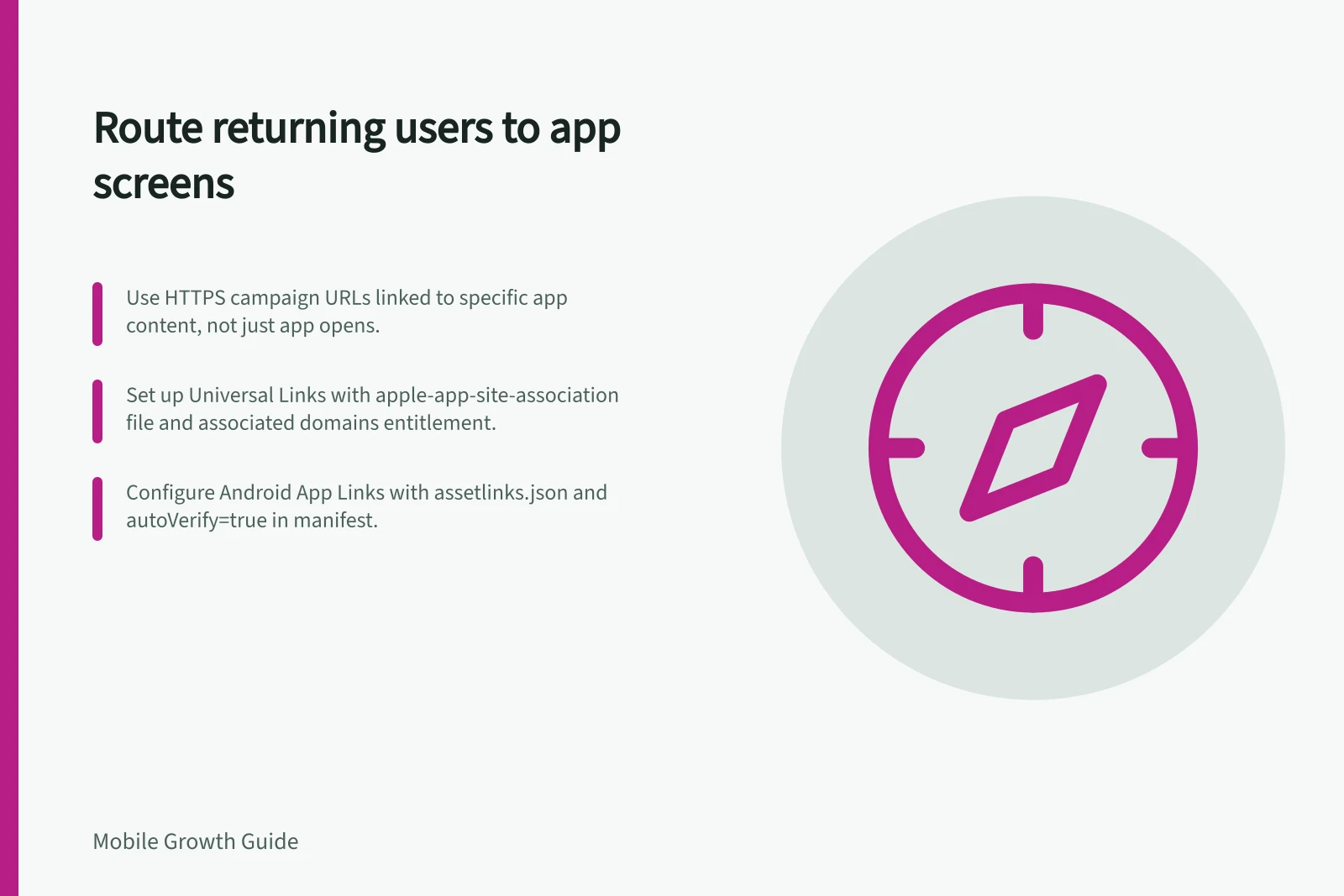
Start with a standard HTTPS campaign URL that identifies the content, not just an instruction to open the app. Use Universal Links on Apple platforms and Android App Links on Android to connect website URLs with the corresponding app content.
For Universal Links, create an apple-app-site-association file containing the URL paths the app handles, then serve it over HTTPS at the domain root or in .well-known. Add the com.apple.developer.associated-domains entitlement to the app and prepare the app to handle Universal Links. Provide a separate association file for each domain with unique content.
For Android App Links, add website URI intent filters to the app manifest. Include the VIEW action, BROWSABLE and DEFAULT categories, http or https schemes, and android:autoVerify="true". Publish a valid Digital Asset Links file at https://<your-domain>/.well-known/assetlinks.json; its SHA-256 signing-key fingerprint must match the app release.
Create a route table in the app that maps each supported campaign URL to a stable content identifier and the matching screen. For a product campaign, map its website URL to the corresponding product page in the app; keep the website and app content aligned.
If the destination requires sign-in, retain the intended URL safely while the user signs in, then resume that destination afterwards. Keep personal information out of URL parameters.
Test each campaign URL on a device with the app closed, in the background and already open. Test Universal Links on an Apple device, and confirm that Android App Links are verified and open the intended screen.
For Android automatic verification, install the app on a device running Android 6 or later and allow at least 20 seconds for verification. On Android 12 or later, manual verification requires an internet connection: reset link state with adb shell pm set-app-links --package PACKAGE_NAME 0 all, then run adb shell pm verify-app-links --re-verify PACKAGE_NAME.
Handle deleted, out-of-stock or region-restricted content with a clear explanation and a relevant alternative instead of silently opening a generic page. Review URL routing after app navigation changes and campaign refreshes, since a URL can open the app but lead to the wrong content.
Record successful arrival at the intended destination separately from app opens. Firebase Dynamic Links shut down on 25 August 2025; links it served stopped working and new links could no longer be created.
Setting up Universal Links and Android App Links for returning users
- Set up Universal Links on Apple platformsCreate `apple-app-site-association` file; serve over HTTPS at domain root or `.well-known`; add entitlement `com.apple.developer.associated-domains` to app
- Set up Android App LinksAdd intent filters in manifest with `VIEW`, `BROWSABLE`, `DEFAULT` categories, `https` scheme, and `android:autoVerify="true"`
- Map URLs to stable content identifiersBuild route table in app linking each campaign URL to a specific screen (e.g., product page) using consistent identifiers
- Handle sign-in flows securelyStore intended destination safely during login; avoid exposing personal data in URL parameters
- Handle invalid or restricted content gracefullyShow clear message and offer alternative if content is deleted, out of stock, or region-restricted
- Monitor routing after updatesReview URL routing after navigation changes or campaign refreshes to prevent incorrect destinations
- Track successful arrivals separatelyRecord arrival at correct screen independently from general app opens; note Firebase Dynamic Links shutdown on 25 August 2025
Universal Links (iOS) vs Android App Links
- Platform
- Apple (iOS)
- Link type
- Universal Links
- Configuration file
- `apple-app-site-association` (served over HTTPS)
- App entitlement
- `com.apple.developer.associated-domains`
- Android platform
- Android 6+ (API 23+)
- Link type
- Android App Links
- Manifest configuration
- Intent filter with `VIEW`, `BROWSABLE`, `DEFAULT`, `https` scheme, `android:autoVerify="true"`
- Verification file
- `assetlinks.json` at `.well-known/assetlinks.json`
Pre-launch validation checklist for deep linking
- HTTPS campaign URL uses meaningful pathYes
- Universal Links configured with `apple-app-site-association` fileYes
- App includes associated domains entitlementYes
- Android App Links include `autoVerify="true"` in manifestYes
- Digital Asset Links file hosted at `.well-known/assetlinks.json`Yes
- SHA-256 fingerprint matches app releaseYes
- URLs mapped to stable content identifiers in appYes
- Sign-in flow preserves intended destinationYes
- Tested on device with app closed, in background, openYes
- Handled edge cases: deleted/out-of-stock/region-restricted contentYes
- Tracking records successful arrival, not just app openYes