App Onboarding
Part of In-app messaging
Showing a message at the moment it helps
Choose in-app message timing from the user's task, a meaningful trigger and a current eligibility check.
Show an in-app message when it fits the task someone is doing. Define that moment by an observable app state and action, then confirm the message is still relevant. Time since installation or a screen count alone does not show a need for help.
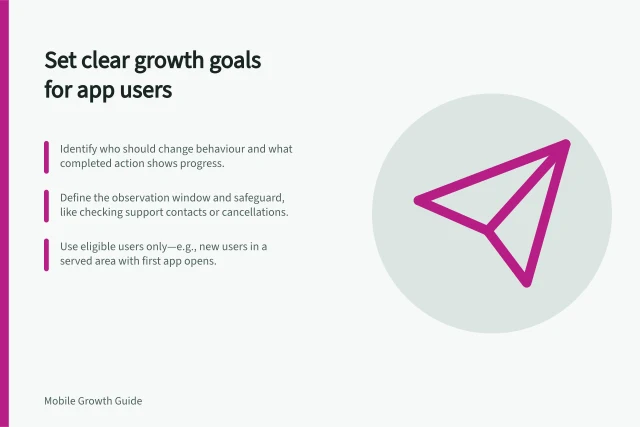
Identify the useful moment
Start with the difficulty the message addresses: an unfamiliar control, a failed action, or returning to unfinished work. Identify what the app can observe. A pause alone does not prove confusion; the person may be reading or taking a break.
A useful rule might be: show the hint once when someone opens the relevant screen, the task is incomplete, the control is available and no sensitive flow is active. Before using a message, consider whether a persistent label would solve the problem more simply.
Moment / Question to ask
- First app open
- Is there a task on screen that needs this information?
- Failed action
- Does the message explain the failure and a next step?
- Return to unfinished work
- Is the task still open and its destination valid?
- Payment step
- Would the prompt interrupt a decision already under way?
Trigger from a meaningful event
Choose an observable app event that marks the relevant step, then check task state before displaying a message. Firebase's SDK documentation says additional integration can trigger message events outside the Analytics framework.
Plan how the app will check task state before displaying a message. A trigger alone does not establish that the message is relevant to the app's current state.
If a temporary app flow makes the message inappropriate, defer display until that flow has ended. Treat this as a current-state check, not as a substitute for checking whether the message is still relevant.
Define when the moment ends
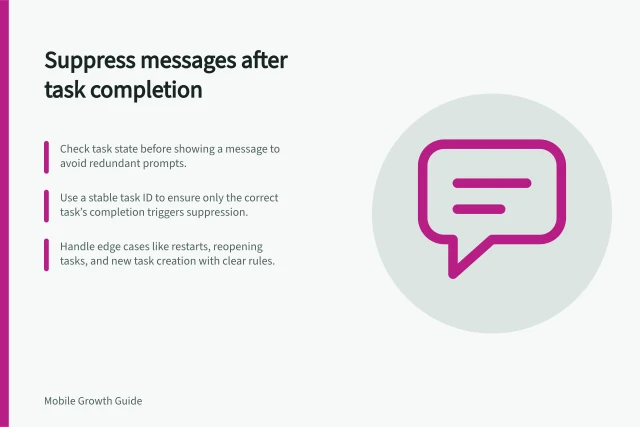
A draft reminder should stop when the draft is submitted or discarded. Help for a new control may stop after successful use, dismissal or a later product change, depending on the message's purpose. Reopening the app should not by itself make an obsolete prompt relevant again.
Check the planned rule with the app already open, after backgrounding, after quick task completion and after a restart. Compare what should appear with what actually appears on supported devices.
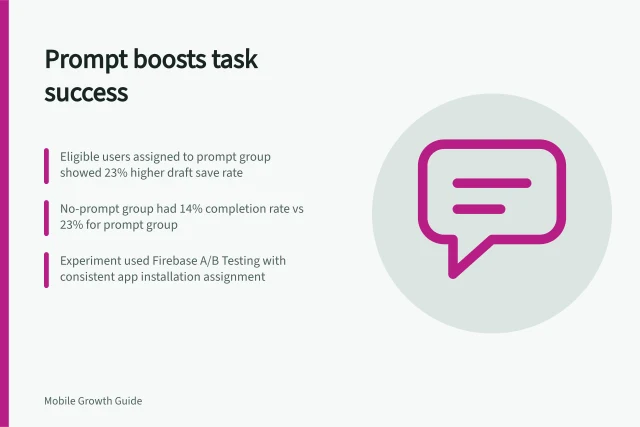
Judge timing by task continuation and completion, as well as dismissal and exit. A high tap rate can coexist with poor timing if the message draws people away from the task it was meant to help.
Timing triggers: when messages should not be shown
- After app restartNot automatically relevant — check task state
- After backgrounding and reopeningOnly if task is still incomplete and valid
- After quick task completionMessage should not reappear
- Based on time since installation or screen countNot sufficient indicators of need for help