App Analytics
Part of App analytics implementation
Checking event properties across app versions
Use a release matrix to check event properties for presence, type, permitted values and meaning across iOS, Android and older builds.
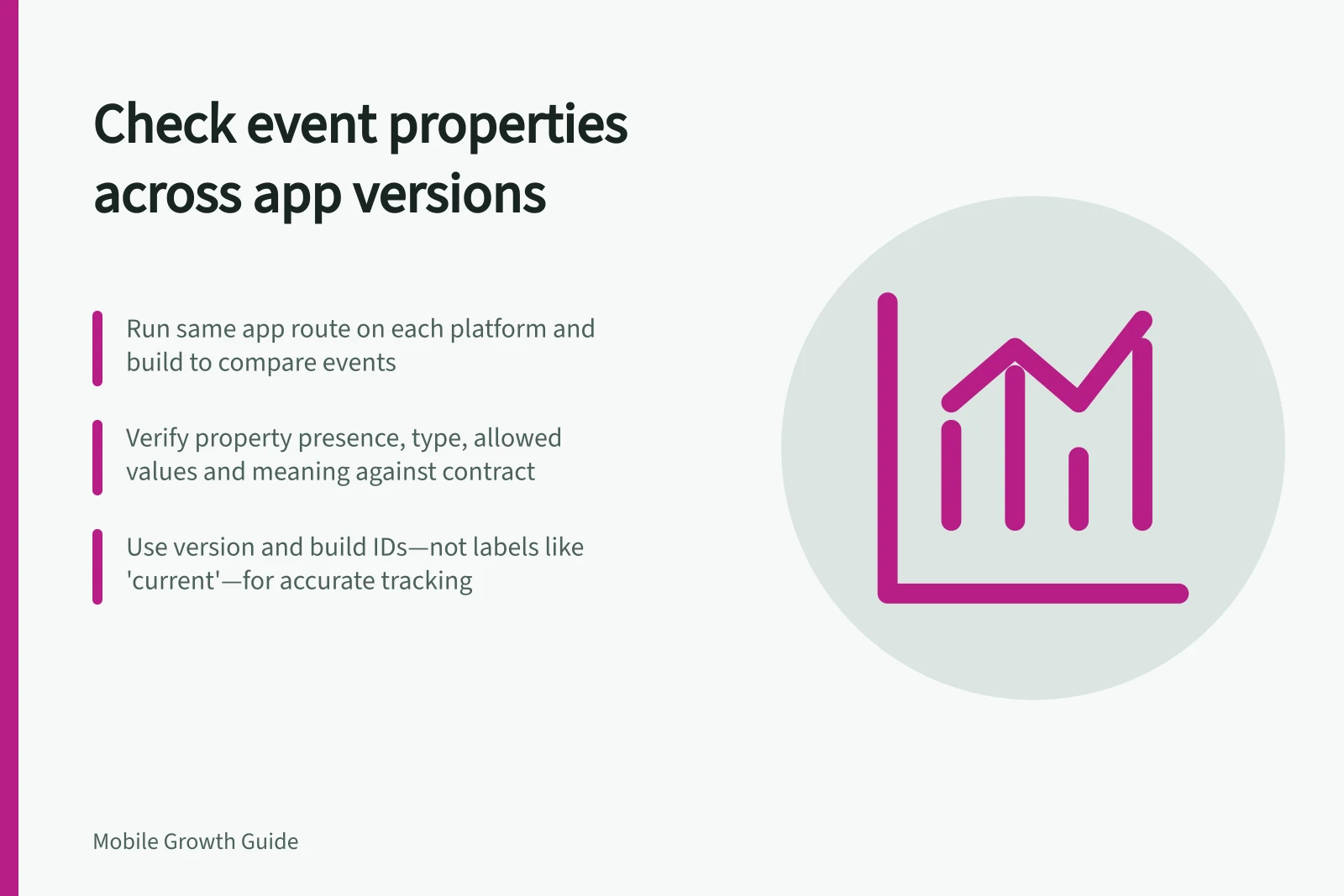
Use a version-matrix release check: run the same app route on each supported platform and build, compare every emitted event with its contract, and record discrepancies before reading release trends. Check property presence, type, allowed values and meaning; unchanged event counts do not prove that the schema is unchanged.
Build a version matrix
Choose events used in important decisions. Create a row for each supported platform and actual build, and record the event, route, expected property definition, observed output and release that adopted the definition. Use the version and build identifiers recorded for the installed app, not labels such as “current” or “older”.
If the event data cannot be reliably linked to a platform and build, establish that link before making release-level comparisons. A release label in a report does not, by itself, establish which build emitted every historical event.
Run the same completed task on each build and compare the resulting rows. Include a successful task and, where relevant, a failed or cancelled task so you can check both expected properties and whether a success event is absent.
Compare meaning, not only presence
Suppose a hypothetical booking app logs booking_confirmed with service_area. An older build might send a city name and a newer build a controlled area code. Both are strings, but the change in allowed values and meaning makes them incompatible as one category. A blank value in one build and an omitted property in another are also different results.
For each property, compare its presence, type, allowed values and meaning with the contract and across builds. Record when a definition became effective and whether each difference is intended or a defect. Also check the event trigger and repeat rule: a property comparison is misleading if one version fires on a tap and another after confirmation.
Confirm that the reporting view used for comparison exposes the event property and the platform/build identifier. If it does not, do not infer a cross-version match from aggregated results.
Exercise paths before reading trends
On development devices, check success, failure, repeat, interruption and alternate routes. Firebase DebugView displays raw event data logged by development devices near real time, so use it to inspect each build while exercising the same paths. It does not establish coverage of production devices or older builds.
Firebase DebugView also shows automatically logged error events and events that include a firebase_error parameter. Open an event to inspect that parameter; device console messages from the Firebase Analytics SDK can help explain why an event or property was rejected.
Tie each check record to its platform, build, route, expected event and observed output. Use safe synthetic inputs when checking that a property cannot carry personal details.
Decide how to report a break
For every discrepancy, record the event and property, platform and build, check date, expected definition, observed output and whether the difference is a defect or an intended change. Assign the finding to the team responsible for the build and record the resulting action.
If a build is wrong, correct the implementation and mark the affected date and version range. If a property deliberately changed meaning, split or relabel the historical series rather than joining incompatible definitions. If older builds lack the property, report their coverage separately; do not fill the gap with a guessed value.
Compare release periods only when their event and property definitions are compatible. A changed property can reflect a measurement change rather than changed user behaviour.